
What to test
- Model availability and response quality.
- Prompt wording and system instructions.
- Image, PDF, and Markdown inputs.
- Image generation from a prompt when you choose an image model.
- Video generation from a prompt or reference image when you choose a video model.
- Parallel answers from several models for the same question.
- Parameters that match the selected model type.
- Current model price information.
- API request snippets that show how parameters are structured.
Attachments
Supported attachment types include:
The attachment size limit is about 20MB. Markdown files are read as text and sent with the message. Image and PDF understanding still depend on the selected model’s input support.
Image and video generation
When you choose an image generation model in the model selector, Conversation sends the request through the image generation endpoint. The text you enter becomes the generation prompt, and returned images appear directly in the conversation. Image models only show Image Count. Enable it to set the number of images for the request, from1-4; when it is disabled, the request does not include an image count. Size, quality, and response format depend on the selected model. Conversation does not send text-chat parameters such as Temperature or Top P to the image generation endpoint.
With a video model, the text input becomes the video prompt. Any uploaded image is also sent as a reference image and can be used for image-to-video generation. Video generation is asynchronous: Conversation shows the task status first, then displays the video after the task completes.
Video models do not all support the same resolution, ratio, duration, or extra features. Start with the defaults or Auto. If a model rejects a combination, retry with values that model supports. Video models do not use text-chat parameters such as Temperature, Top P, or Max Tokens.
Workflow
- Sign in and open Conversation.
-
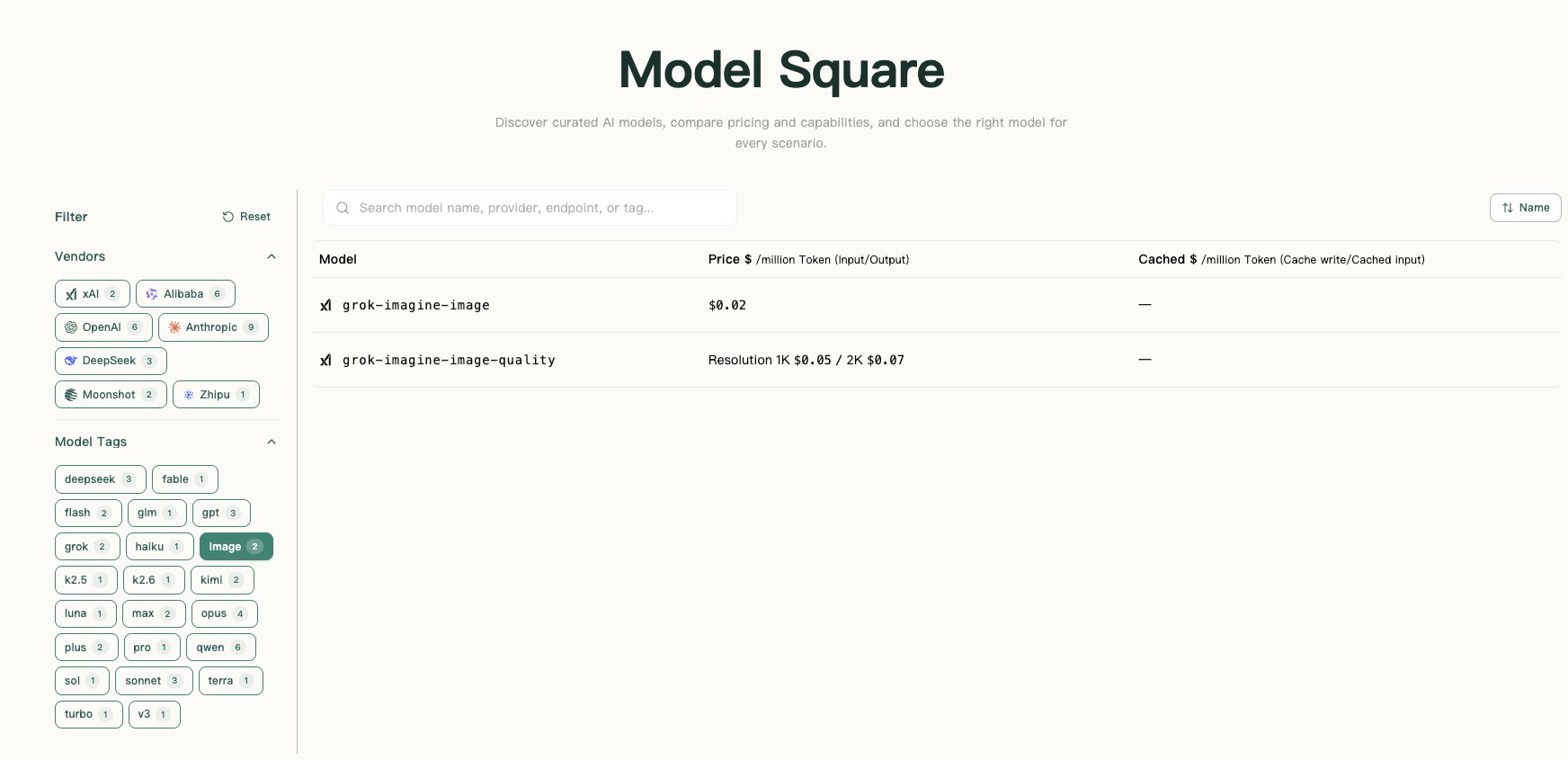
Search for and select a model in the model list. For images or videos, choose the matching image or video generation model. To compare results, use Add Model to add more models.
- Open the parameter panel beside each model and configure that model independently.
- Enter text or upload an image, PDF, or Markdown file. A video model can use both a text prompt and reference images.
- Send the request and review the response. With multiple models selected, the same question is sent to each model and Conversation shows each answer, image, or video-task status separately.
-
Open the API snippet panel when you want to understand the request shape. External code should still use an
sk-key created in API Keys.
Multi-model comparison
Use Add Model to put several models in the left-hand list. When you send one message, Conversation makes a separate request to every selected model, so you can compare their output in the same turn.-
Each response identifies the model that generated it.
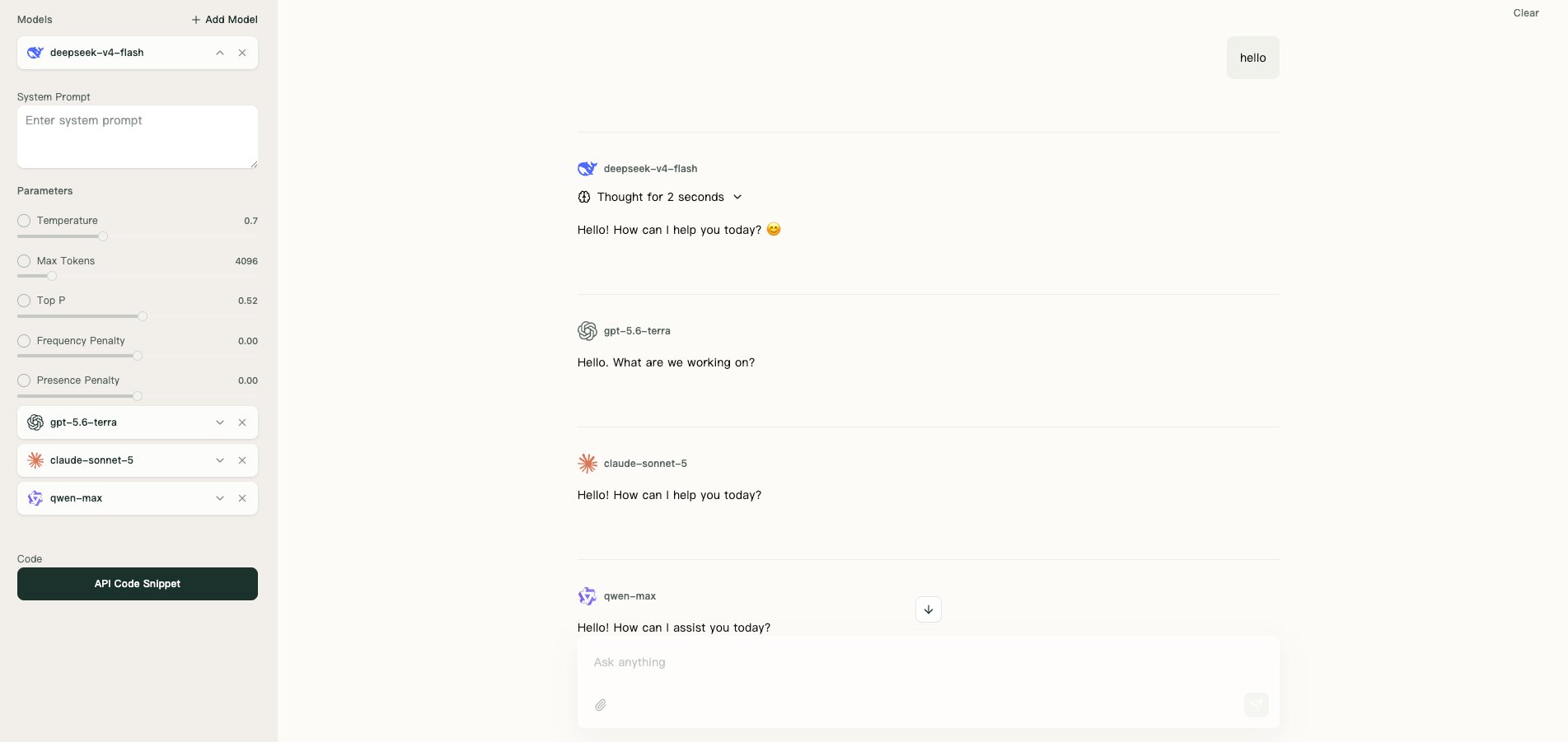
- System prompts, parameter toggles, and parameter values are stored per model. Changing one model does not change the others.
- Remove is available only when two or more models are selected; at least one model must remain.
- Each selected model is an independent billed request, so adding models increases total usage and cost.
- Regenerating an answer requests only the model that produced that answer.
Parameters
The parameter panel changes with the selected model type. The checkbox beside a parameter decides whether it is included in the request. A cleared checkbox means the parameter is not sent, which avoids errors from models that do not support it.Chat and reasoning models
Image generation models
Image models do not show System Prompt, Temperature, Top P, Max Tokens, Frequency Penalty, or Presence Penalty.
Video generation models
Models of the same type can still accept different values. If a parameter causes a failure, clear text-parameter checkboxes, or reset image and video settings to their defaults or Auto before trying again.
Troubleshooting
- If Conversation works but your client fails, compare Base URL, model name, request body, and key limits.
- If Conversation fails too, open Usage and read the failure reason, then check balance, model availability, and parameters.
- If an attachment is ignored, confirm that the model supports image or PDF input. For Markdown files, check that the file is readable text and not too large.
- If no image is generated, confirm that the selected model supports image generation, the prompt is not empty, and the requested image count is supported.
- If a video task fails, confirm that the selected model is a video model and the prompt is not empty. Start with the default resolution, Auto ratio, and Auto duration, then adjust one setting at a time.
- If multi-model answers differ, that is expected because they are independent requests. Check that their parameter panels use the same system prompt and enabled parameters before comparing output.