
Values
Setup
1
Open model settings
In Cursor, go to Settings → Models.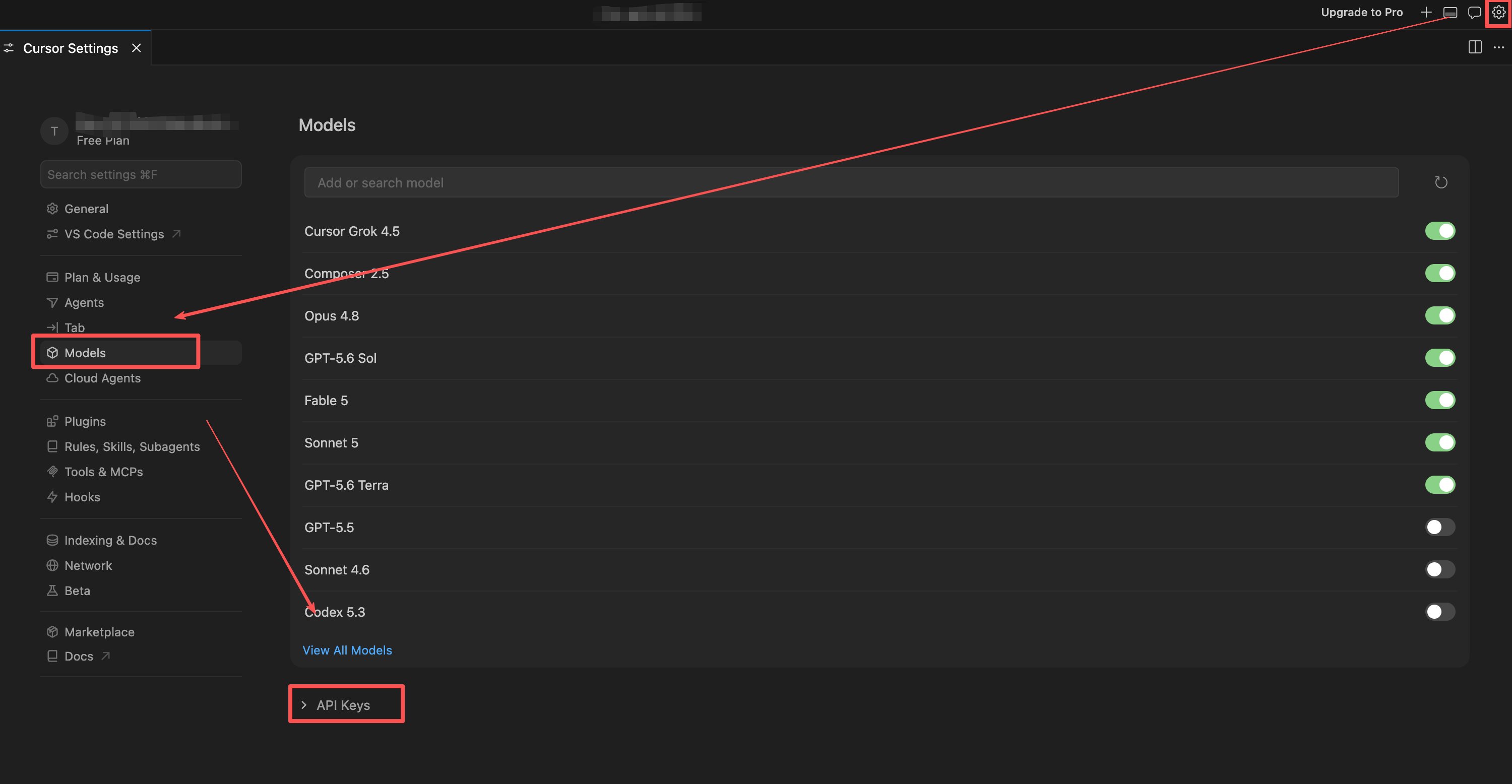
2
Enable OpenAI API Key
Turn on OpenAI API Key and paste your Moxus AI
sk- key.3
Set the Base URL
Enable Override OpenAI Base URL and enter 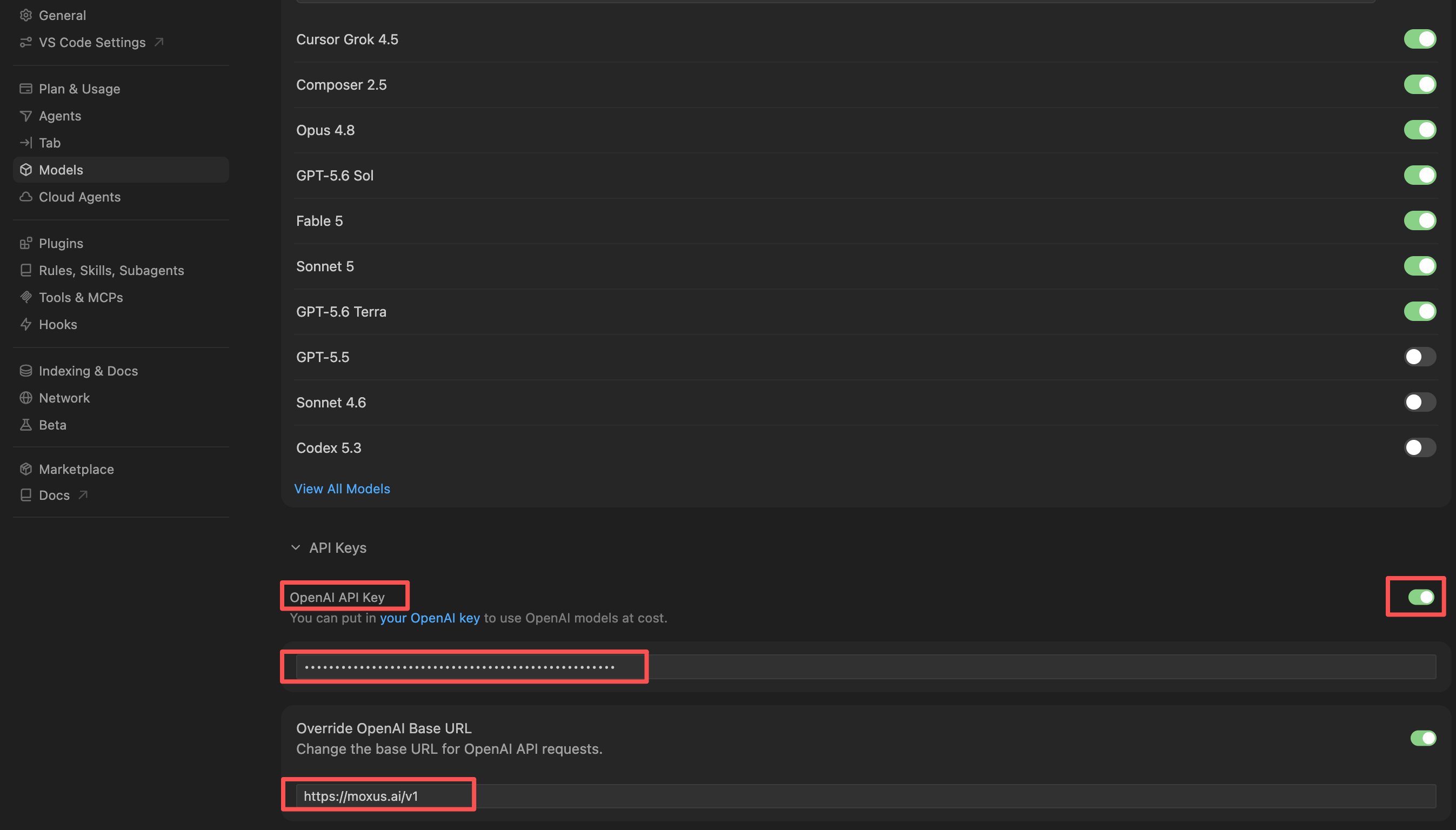
https://moxus.ai/v1.4
Add or enable models
First search the existing model list and enable the model you want to use. Only add a model manually in the search box if the target model is not already listed. The model name should match the exact name shown in Moxus AI’s Models and pricing page.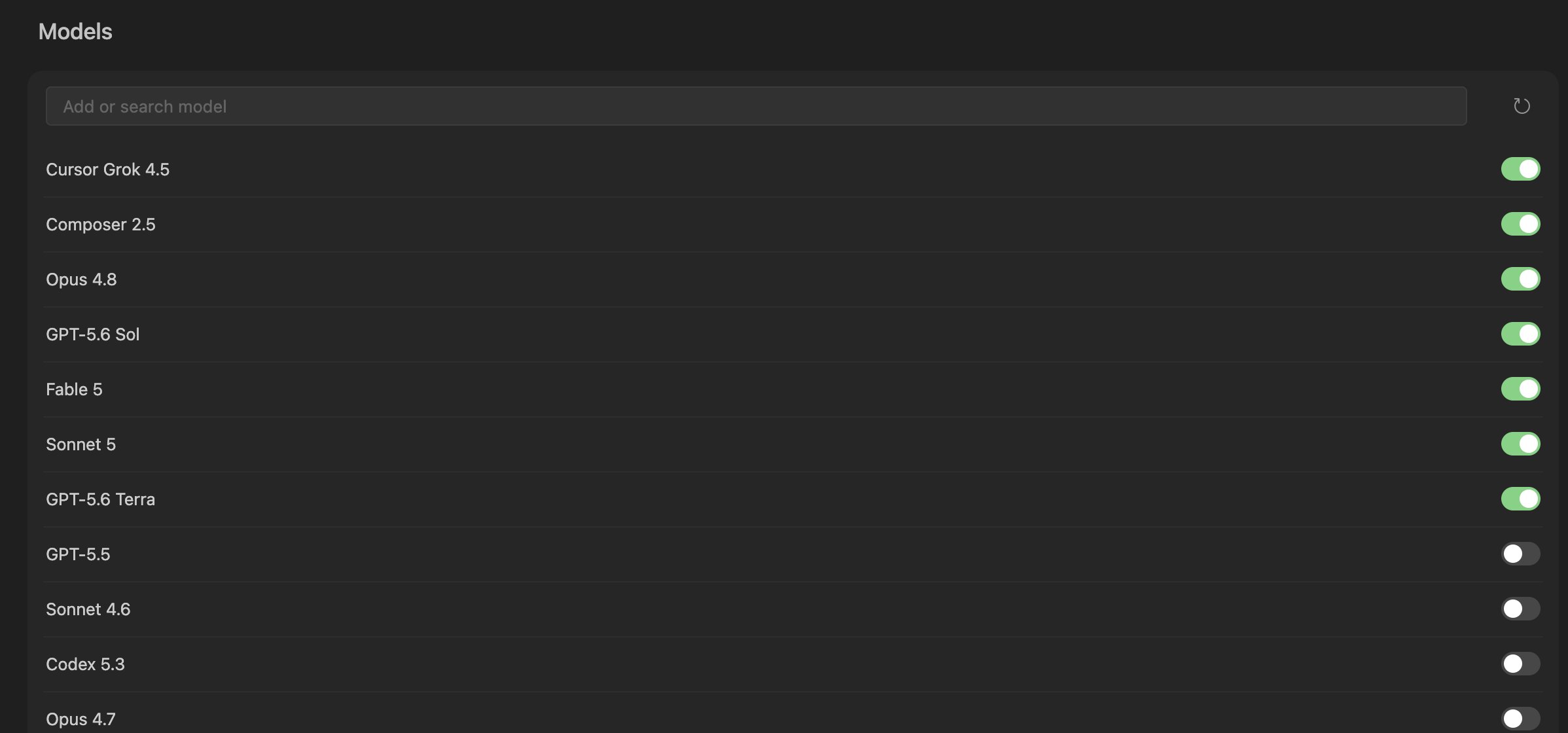
5
Test a request
Open Chat or Composer, choose a model, and send a short test message.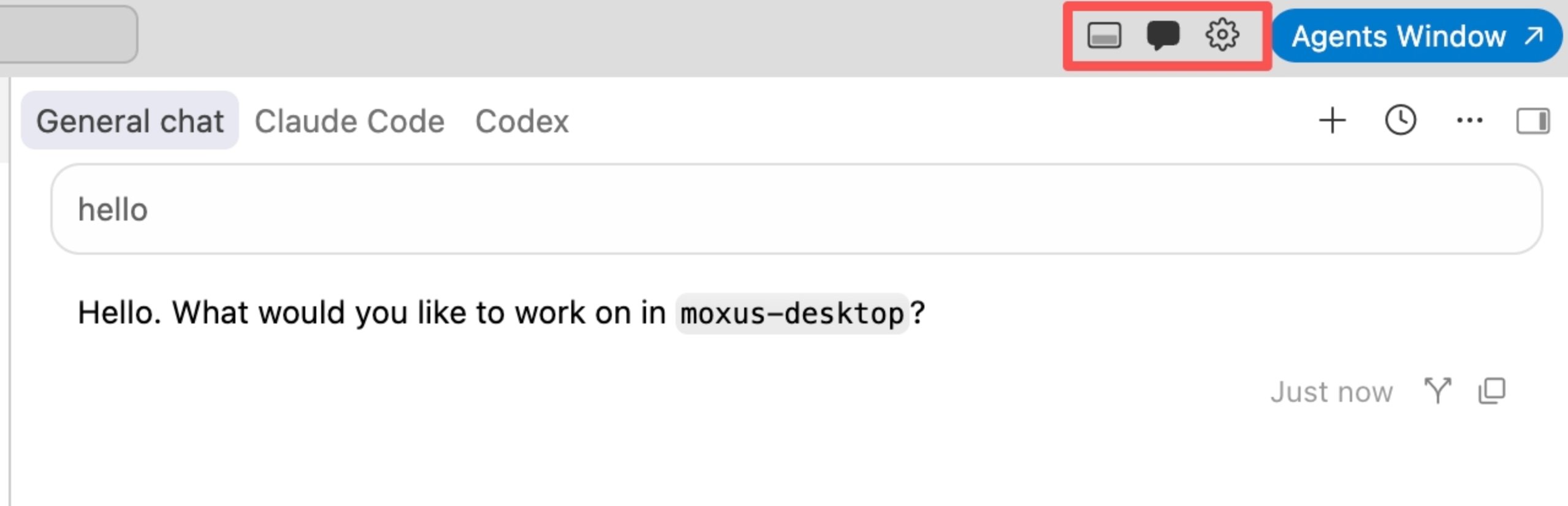
How to use it
Cmd/Ctrl + L: open chat for code explanation and project questions.Cmd/Ctrl + I: open Composer for code edits.- Agent mode: useful for multi-file tasks, but it may produce more requests and higher cost.
Troubleshooting
Free plans can only use Auto
Free plans can only use Auto
This is a Cursor plan limitation, not a Moxus AI key error. Switch to Auto or upgrade Cursor before selecting a specific model manually.
The model I want is missing
The model I want is missing
First check whether the model already exists in Cursor’s built-in model list. If it is already listed, enable it instead of adding it again. Only add the exact model name from Models and pricing when it is truly absent.
The model does not appear after I add it
The model does not appear after I add it
This usually means Cursor already has the same or an equivalent model built in, so adding it again does not create a new list item. Search the existing model list and enable it there.
The model list is very short
The model list is very short
This is usually related to your Cursor plan, client version, or regional availability, not a Moxus AI API key error. Update Cursor, confirm your paid plan status, or reopen Models from a supported network region.
Requests fail after setup
Requests fail after setup
Open Usage and check whether the request reached Moxus AI, which key was used, and which model was called.