> ## Documentation Index
> Fetch the complete documentation index at: https://docs.moxus.cloud/llms.txt
> Use this file to discover all available pages before exploring further.
# FAQ
> Common questions about accounts, API keys, models, billing, and integrations in Moxus AI.
## Account and keys
Yes. Choose the Google sign-in option on the sign-in or registration page, then complete the Google authorization flow.
Open Profile and security after signing in. You can change your login password and update the bound email address.
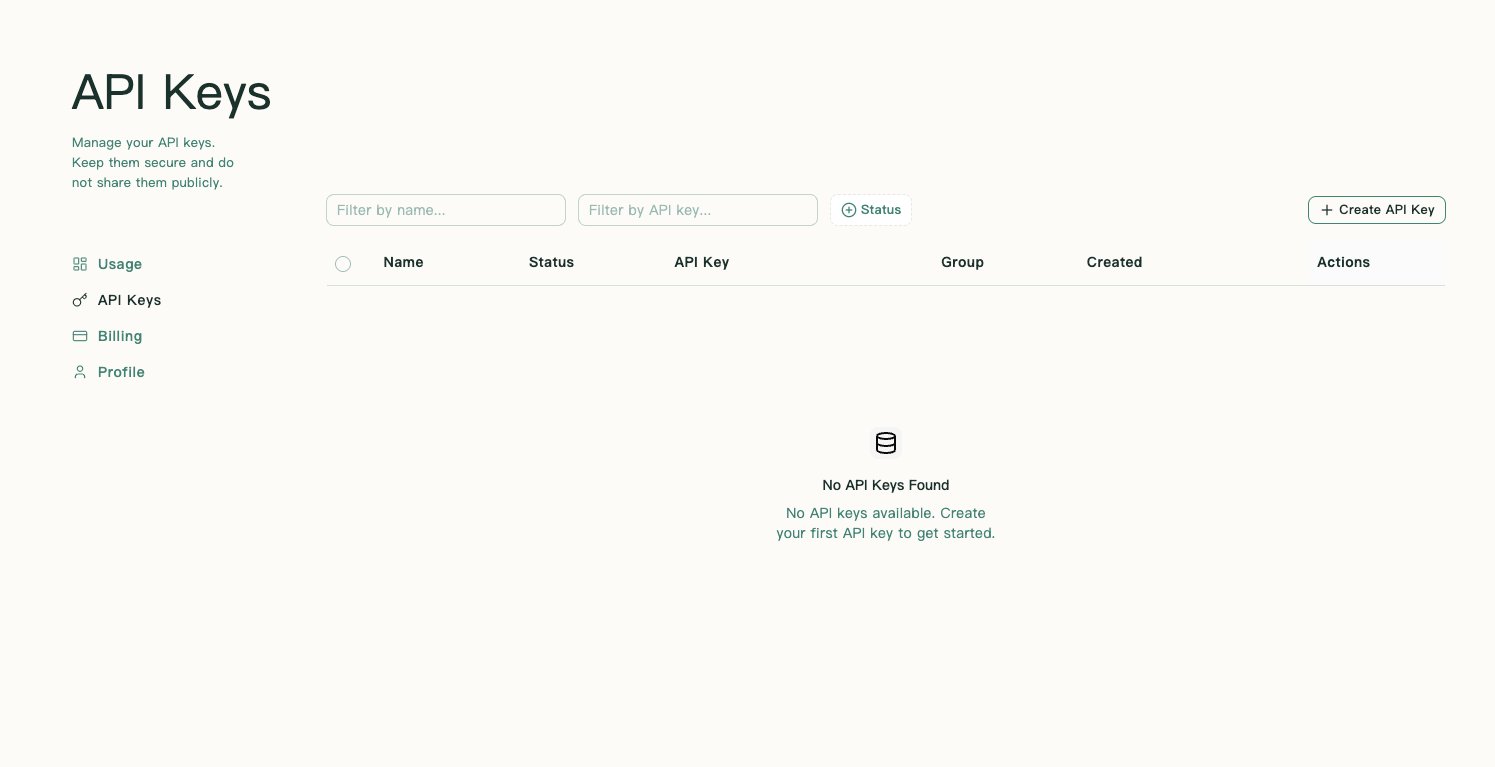
Sign in, open API Keys, create a key, and copy the `sk-` value immediately. The full key is usually shown only once.
 You can, but separate keys are recommended. They make quota control, rotation, and incident response easier.
Delete or disable the exposed key, create a new one, update your app, and review Usage for abnormal calls.
## Running code examples
`openai` is not part of the Python standard library, so install it first. Save the Python example as `image_understanding.py`, then run these commands in a terminal opened in the project folder:
```bash theme={null}
python3 -m venv .venv
source .venv/bin/activate
python -m pip install openai
python image_understanding.py
```
This creates a project-local `.venv` environment, so dependency installation and script execution use the same Python interpreter. For later runs, first execute `source .venv/bin/activate`, then run `python image_understanding.py`.
`openai` is not a built-in Node.js module. Save the Node.js example as `image-understanding.mjs`, then run these commands in a terminal opened in the project folder:
```bash theme={null}
npm install openai
node image-understanding.mjs
```
## Models and requests
The model name may be wrong, unavailable, capability-mismatched, or blocked by key limits. Copy the exact model name from Model Square and check key settings.
Use `https://moxus.cloud/v1` for OpenAI-compatible SDKs, `https://moxus.cloud` for Anthropic-compatible APIs, and `https://moxus.cloud/v1beta` for Google-compatible APIs.
The key may be wrong, disabled, expired, or missing the `Bearer ` prefix in the `Authorization` header.
Models support different request parameters. In the Parameters section on the left side of Conversation, clear the checkbox beside the parameter named in the error, such as `Temperature` for `temperature is deprecated for this model`. An unchecked parameter is omitted from the request, so the model uses its own default behavior. You can also confirm that the field is gone in the API code snippet before sending.
If the request still fails, clear any other parameter named in the error and try again. Changing the parameter value is not enough when the model has deprecated or does not support the field.
## Billing
Open Usage and check Common Logs. Each request shows model, token usage, status, cost, and failure reason when available.
Open Billing to review balance, top-ups, redemption codes, refunds, and billing history.
Output length, context length, cache behavior, and model selection can vary between calls, so token usage and cost can change.
## Next steps
* [Quickstart](/en/overview/quickstart)
* [Models and pricing](/en/overview/models-and-pricing)
* [Support](/en/overview/support)
You can, but separate keys are recommended. They make quota control, rotation, and incident response easier.
Delete or disable the exposed key, create a new one, update your app, and review Usage for abnormal calls.
## Running code examples
`openai` is not part of the Python standard library, so install it first. Save the Python example as `image_understanding.py`, then run these commands in a terminal opened in the project folder:
```bash theme={null}
python3 -m venv .venv
source .venv/bin/activate
python -m pip install openai
python image_understanding.py
```
This creates a project-local `.venv` environment, so dependency installation and script execution use the same Python interpreter. For later runs, first execute `source .venv/bin/activate`, then run `python image_understanding.py`.
`openai` is not a built-in Node.js module. Save the Node.js example as `image-understanding.mjs`, then run these commands in a terminal opened in the project folder:
```bash theme={null}
npm install openai
node image-understanding.mjs
```
## Models and requests
The model name may be wrong, unavailable, capability-mismatched, or blocked by key limits. Copy the exact model name from Model Square and check key settings.
Use `https://moxus.cloud/v1` for OpenAI-compatible SDKs, `https://moxus.cloud` for Anthropic-compatible APIs, and `https://moxus.cloud/v1beta` for Google-compatible APIs.
The key may be wrong, disabled, expired, or missing the `Bearer ` prefix in the `Authorization` header.
Models support different request parameters. In the Parameters section on the left side of Conversation, clear the checkbox beside the parameter named in the error, such as `Temperature` for `temperature is deprecated for this model`. An unchecked parameter is omitted from the request, so the model uses its own default behavior. You can also confirm that the field is gone in the API code snippet before sending.
If the request still fails, clear any other parameter named in the error and try again. Changing the parameter value is not enough when the model has deprecated or does not support the field.
## Billing
Open Usage and check Common Logs. Each request shows model, token usage, status, cost, and failure reason when available.
Open Billing to review balance, top-ups, redemption codes, refunds, and billing history.
Output length, context length, cache behavior, and model selection can vary between calls, so token usage and cost can change.
## Next steps
* [Quickstart](/en/overview/quickstart)
* [Models and pricing](/en/overview/models-and-pricing)
* [Support](/en/overview/support)