> ## Documentation Index
> Fetch the complete documentation index at: https://docs.moxus.cloud/llms.txt
> Use this file to discover all available pages before exploring further.
# Browser extensions
> Configure Sider, ChatGPT Sidebar, and other browser extensions with custom API support.
Browser extensions are often used for webpage summaries, translation, rewriting, and sidebar chat. If the extension supports OpenAI-compatible APIs, it can connect to Moxus AI.
## Common values
| Field | Value |
| -------- | ------------------------------------------------- |
| Provider | OpenAI / Custom API / OpenAI Compatible |
| Base URL | `https://moxus.cloud/v1` |
| API Key | `sk-your-key` |
| Model | Copy the exact model name from Models and pricing |
## Sider
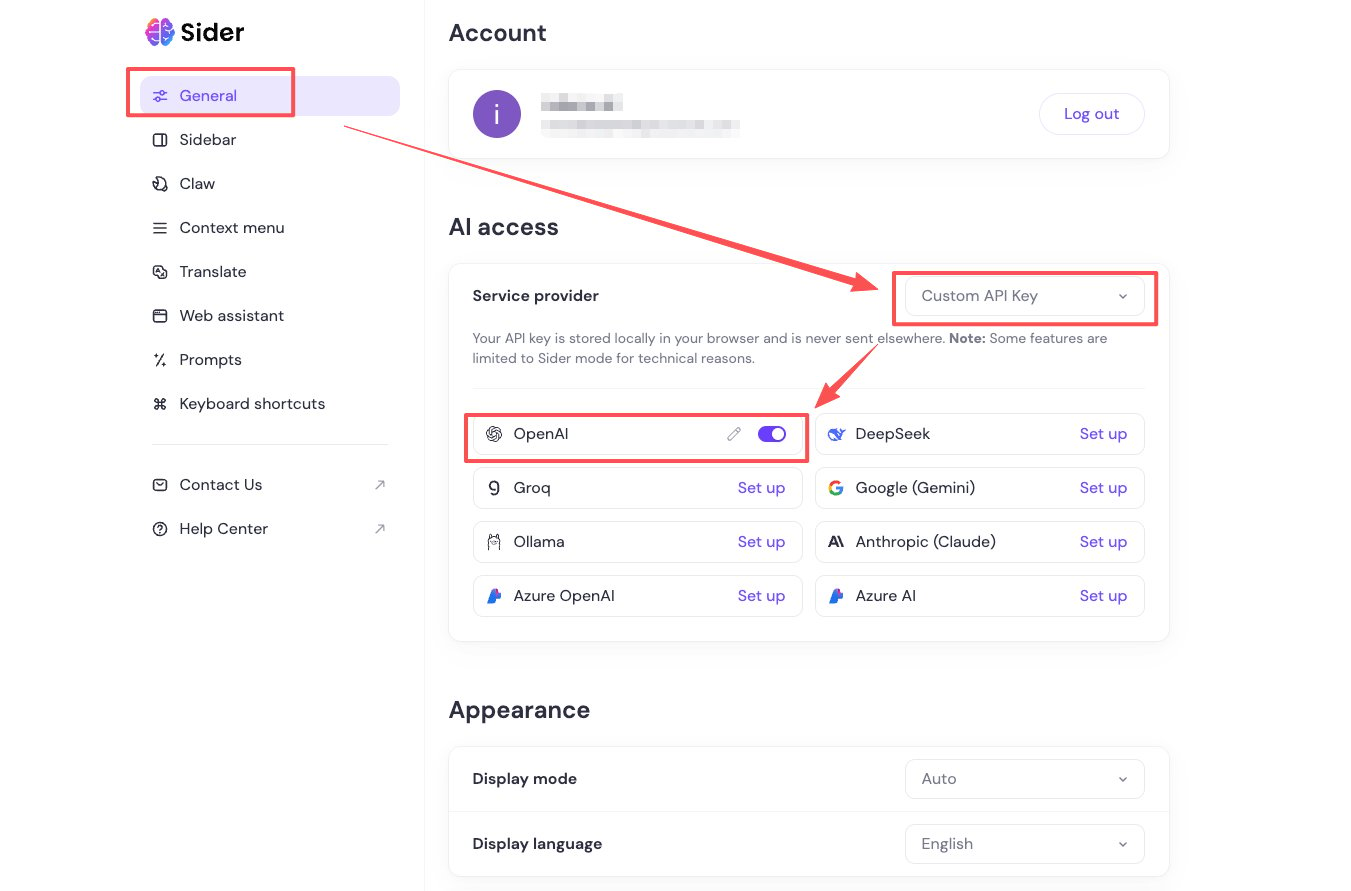
Click the Sider icon on the right side of the browser and open Sider settings.
Open General settings, choose custom API key in the AI access area, then click Settings for OpenAI.
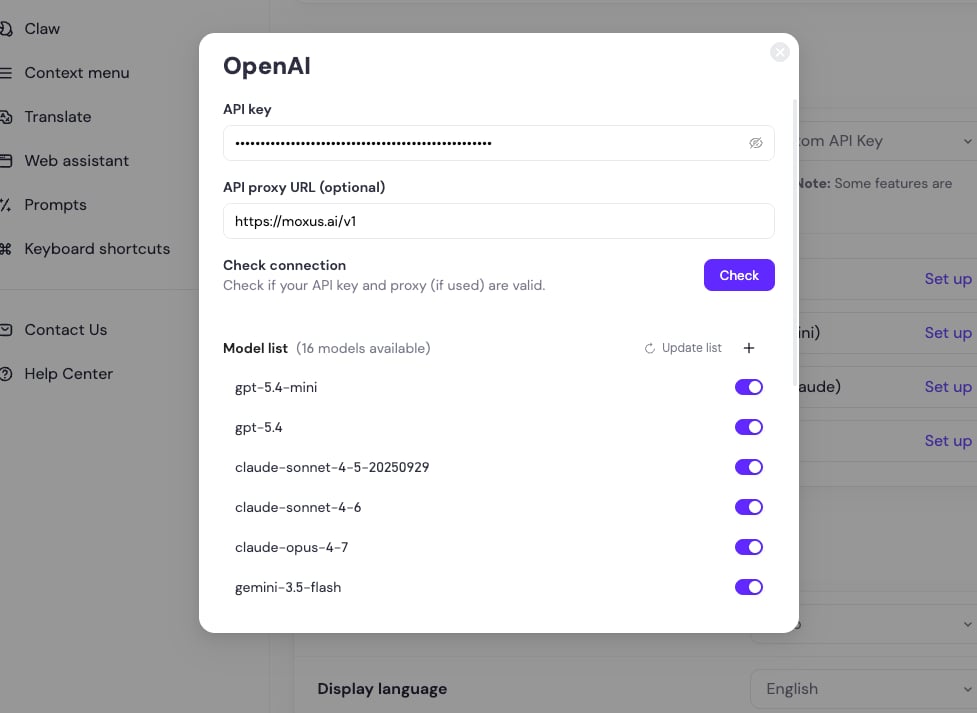
 In the OpenAI configuration window, use a custom API key and proxy URL.
Set the API proxy URL to `https://moxus.cloud/v1`.
Set API key to `sk-your-key`, then check or save the configuration.
In the OpenAI configuration window, use a custom API key and proxy URL.
Set the API proxy URL to `https://moxus.cloud/v1`.
Set API key to `sk-your-key`, then check or save the configuration.
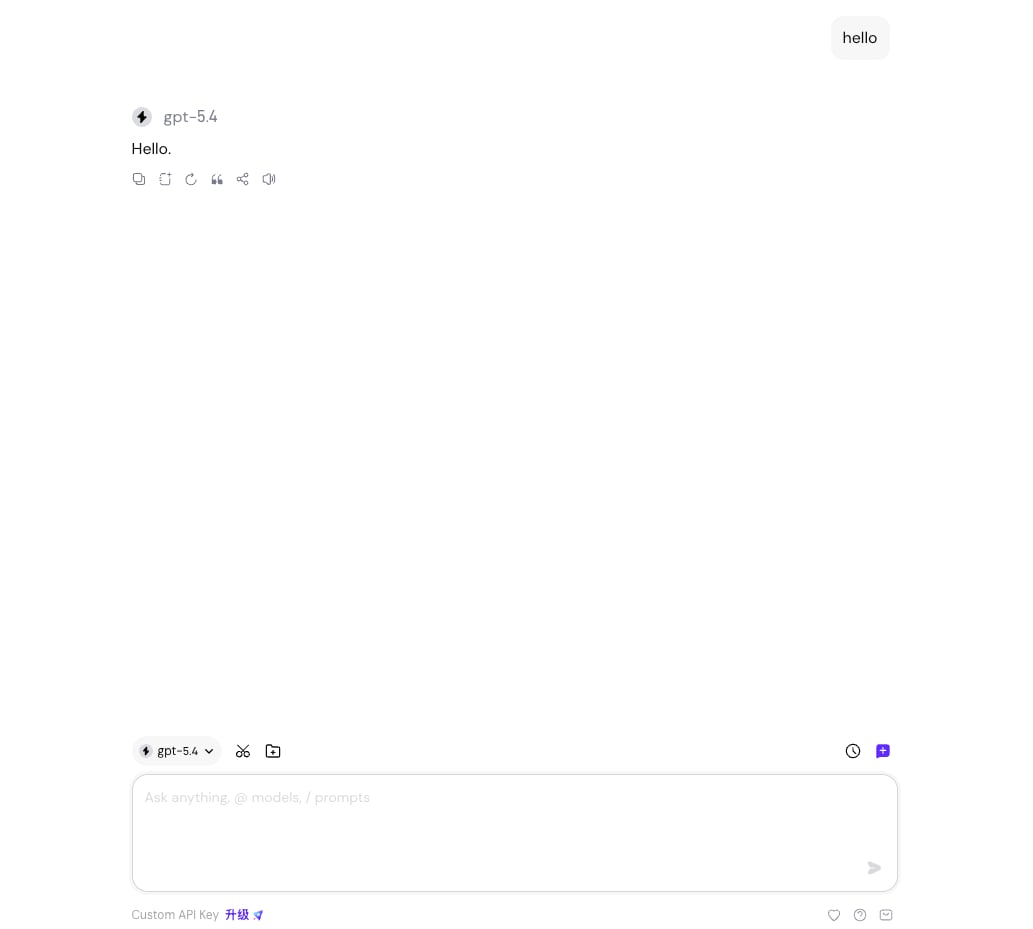
 Save the settings, choose an available model, and send a test message to confirm Sider returns a response.
 ## ChatGPT Sidebar
1. Open extension settings.
2. Choose custom API or OpenAI API.
3. Set endpoint to `https://moxus.cloud/v1`.
4. Enter your API key.
5. If the extension asks for a model, enter the exact model name from Models and pricing.
## Other browser assistants
Most extensions use different field names for the same values:
| Extension field | Value |
| ----------------------------- | ------------------------------------------------- |
| API Host / API URL / Base URL | `https://moxus.cloud/v1` or `https://moxus.cloud` |
| API Key / Token | `sk-your-key` |
| Model / Model ID | Exact model name from Models and pricing |
Browser extensions store keys in local extension settings. Do not use a main account key on public computers or untrusted extensions. Create a separate low-quota key instead.
## Troubleshooting
Usually no. Most extensions only need the `sk-` key and add `Bearer` automatically. Only enter the full Authorization header if the extension explicitly asks for it.
The extension may be sending too much context or unsupported page content. Select a smaller page range or choose a longer-context model.
Create a separate API key for browser extensions and set a low quota limit. Delete the key when you no longer use the extension.
## Next steps
* [Billing](/en/platform/billing)
* [Usage](/en/platform/dashboard-and-usage)
## ChatGPT Sidebar
1. Open extension settings.
2. Choose custom API or OpenAI API.
3. Set endpoint to `https://moxus.cloud/v1`.
4. Enter your API key.
5. If the extension asks for a model, enter the exact model name from Models and pricing.
## Other browser assistants
Most extensions use different field names for the same values:
| Extension field | Value |
| ----------------------------- | ------------------------------------------------- |
| API Host / API URL / Base URL | `https://moxus.cloud/v1` or `https://moxus.cloud` |
| API Key / Token | `sk-your-key` |
| Model / Model ID | Exact model name from Models and pricing |
Browser extensions store keys in local extension settings. Do not use a main account key on public computers or untrusted extensions. Create a separate low-quota key instead.
## Troubleshooting
Usually no. Most extensions only need the `sk-` key and add `Bearer` automatically. Only enter the full Authorization header if the extension explicitly asks for it.
The extension may be sending too much context or unsupported page content. Select a smaller page range or choose a longer-context model.
Create a separate API key for browser extensions and set a low quota limit. Delete the key when you no longer use the extension.
## Next steps
* [Billing](/en/platform/billing)
* [Usage](/en/platform/dashboard-and-usage)